






Imagine this: your phone rings, and instead of your name lighting up the screen, it’s an embarrassing nickname from high school. Yikes! Changing your name on iPhone Caller ID is more than just a cosmetic upgrade; it’s about reclaiming your identity. Whether you want to show off your new last name after a wedding or simply ditch that cringe-worthy childhood moniker, it’s easier than you think.
In just a few taps, you can ensure that your friends and family see the name you want them to see. No more awkward moments or mistaken identities. So, let’s dive into the simple steps that’ll have your Caller ID reflecting the real you—because who doesn’t want their phone to match their fabulous personality?
Understanding Caller ID on iPhone
Caller ID displays a name when making or receiving calls on an iPhone. This feature helps identify who is calling, allowing users to make informed decisions about answering calls. The name shown typically comes from the contact saved in the device or the user’s own account settings.
Apple provides settings that can customize this display. This customization includes changing the name associated with the iPhone through the device itself or through Apple ID settings. Keeping the Caller ID current is essential for clarity and personal identification, especially in professional and social contexts.
Privacy considerations also affect how Caller ID works. Users can choose to hide their Caller ID, providing anonymity when making calls. This feature may suit individuals who prefer privacy over identification. Alternatively, displaying their name fosters transparency and trust among contacts.
Maintaining an accurate Caller ID enhances communication efficiency. For example, an updated name prevents confusion and establishes a clear connection during calls. Effective use of Caller ID contributes to improved interactions by ensuring that recipients recognize the caller.
Understanding these functions helps users effectively manage their identities and interactions. Numerous options exist to adjust settings, reinforcing the importance of users knowing how to control what shows up on Caller ID. This understanding empowers individuals to present themselves accurately and confidently on their calls.
Steps to Change Your Name on iPhone Caller ID
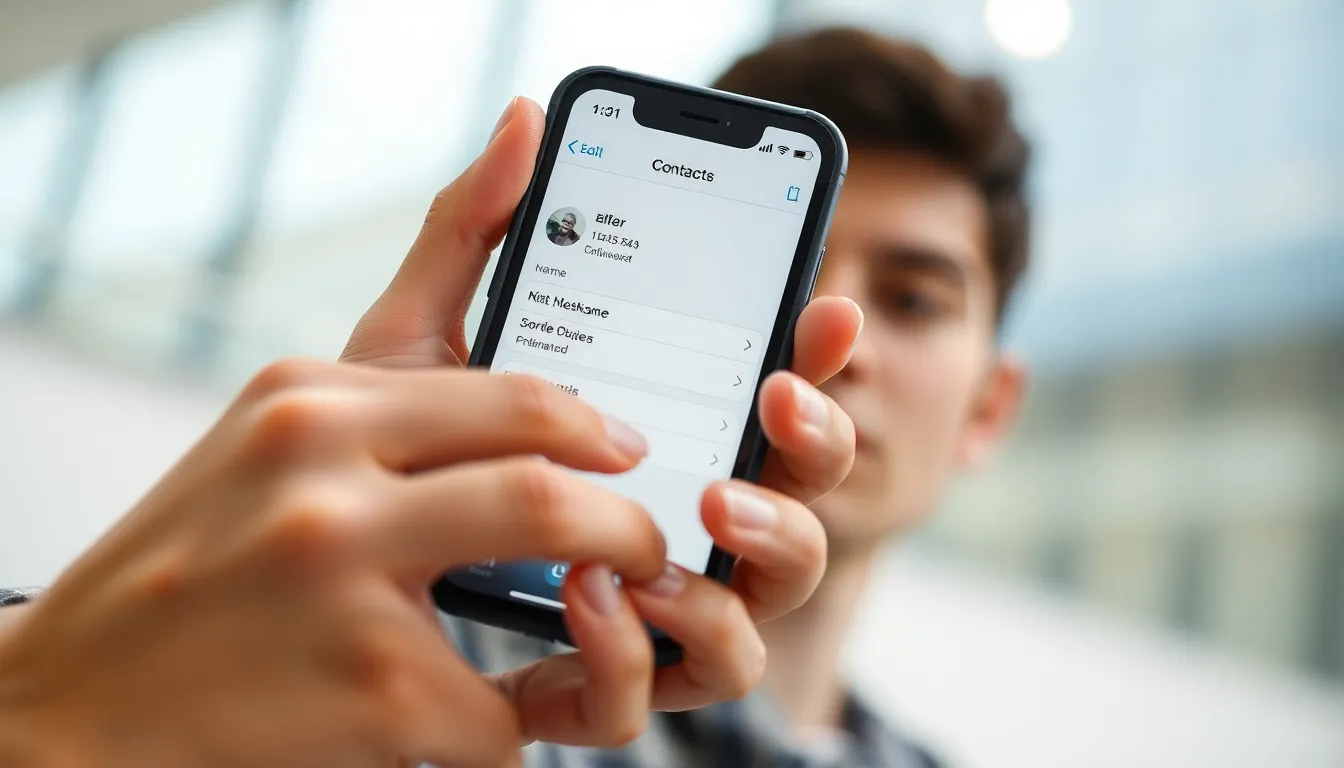
Changing the name on your iPhone Caller ID is a straightforward process. It requires access to your device settings and contacts.
Accessing Your Contacts
Open the Contacts app on the iPhone. This app shows all saved contacts and their details. Tap on the contact that represents your own name. It’s essential to select the correct entry for accurate changes. Once the contact opens, look for the Edit option, usually found in the top right corner. Tapping Edit allows access to fields that can be adjusted.
Editing Your Name
In the Edit view, locate the name field. Replace the current name with your preferred name. Ensure accuracy in spelling and capitalization for clear identification. After making changes, tap Done to save adjustments. Confirm that the displayed name matches your intent. This updated name will now appear whenever you make outgoing calls, improving Caller ID representation.
Important Considerations
Changing the name displayed on iPhone Caller ID involves key points to ensure an accurate representation.
Carrier Restrictions
Carriers may impose specific restrictions on Caller ID display. Certain providers only allow users to update their Caller ID through their account settings or customer service. Users must check with their carrier for guidelines, as some may require additional verification processes. Limitations can vary, so being aware of these carrier-specific rules is essential. Understanding these restrictions helps prevent unexpected issues when users attempt to change their Caller ID name.
Displaying Your Name Correctly
Correctly displaying the name on Caller ID requires attention to detail. Users should ensure the name entered in the Contacts app matches how they’d like it to appear. Factors such as spelling, capitalization, and initials can influence how the name shows up. Including commonly used variations can enhance recognition by contacts. Familiarity with how outgoing calls display the name provides clarity and fosters easy identification. Additionally, verifying settings in the Apple ID account can further ensure accuracy in Caller ID representation.
Troubleshooting Common Issues
Occasionally, users might encounter problems while changing their name on iPhone Caller ID. First, check for any software updates. Sometimes, an outdated operating system can cause glitches. Users should navigate to Settings and select General, then Software Update to ensure they’re running the latest version.
Next, verify that the name saved in Contacts matches expectations. If the name doesn’t display correctly, editing the contact entry may solve the issue. Open the Contacts app, find the self-entry, tap Edit, and confirm the name’s accuracy, including spelling and capitalization.
Carrier restrictions can also hinder name changes. Certain carriers require updates to be made through account settings or customer service. Contacting the carrier directly ensures compliance with their policies and resolves any discrepancies.
Additionally, users might need to restart their devices after making changes. Restarting can refresh the system and apply updates. To restart, press and hold the side button and either volume button until the slider appears. Slide to power off and turn it back on after a few seconds.
Lastly, be aware of privacy settings. Sometimes hiding Caller ID affects name display. Go to Settings, select Phone, and check whether the Show My Caller ID option is turned on. Ensuring it’s enabled allows the selected name to appear during outgoing calls.
Following these suggestions can help users troubleshoot issues effectively and maintain accurate Caller ID settings.
Changing the name on iPhone Caller ID is a straightforward process that can significantly enhance communication. By following the outlined steps and considering important factors like accuracy and privacy settings, users can ensure their Caller ID reflects their true identity.
This small adjustment can prevent confusion and foster better connections with contacts. Whether it’s updating a name after a life event or simply wanting to present oneself more professionally, taking control of Caller ID is a valuable move. With the right approach, users can confidently manage how they appear during calls, making every interaction clearer and more meaningful.