




In a world where everyone’s glued to their screens, finding the perfect brightness level on an iPhone can feel like searching for a needle in a haystack. If you’ve ever squinted at your screen in bright sunlight or felt like you’re navigating a cave in the dark, you’re not alone. Luckily, there’s a solution that’ll save your eyes and make your iPhone experience a whole lot smoother.
Understanding Auto Brightness
Auto Brightness adjusts the screen brightness on an iPhone based on ambient light conditions. This feature helps enhance visibility in various environments, providing a comfortable viewing experience. Users benefit from not manually changing brightness settings each time they enter a different lighting situation.
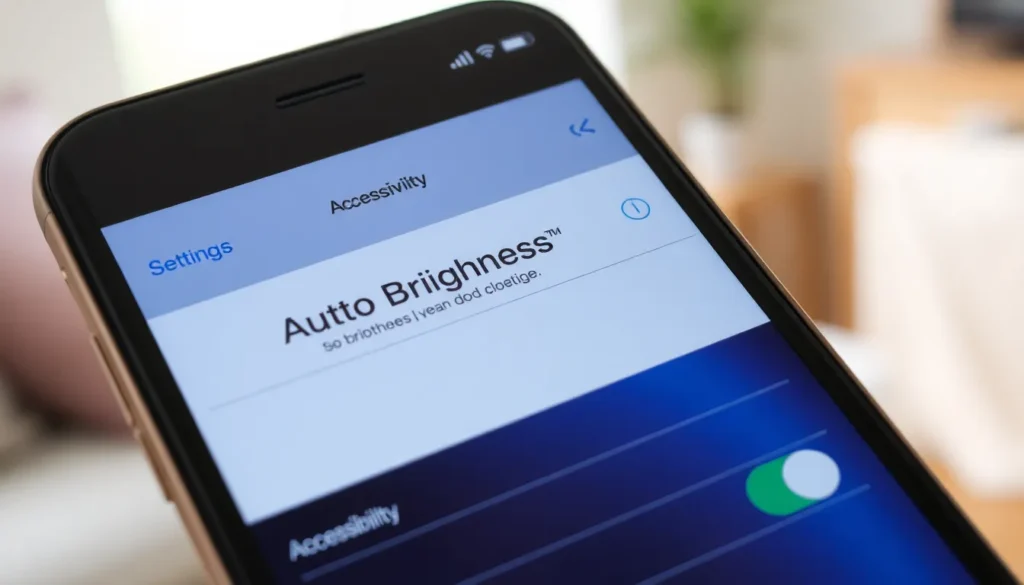
To access Auto Brightness, navigations through settings are necessary. Start by opening the “Settings” app, then select “Accessibility.” Next, tap “Display & Text Size.” Users find the “Auto Brightness” toggle at the bottom of this section. Activating this feature optimizes screen brightness automatically.
Some iPhone models have an option called “True Tone,” which also impacts brightness. True Tone adjusts the color temperature of the display according to surrounding light. This feature complements Auto Brightness by creating a consistent viewing experience.
A common benefit of using Auto Brightness is reducing eye strain. Excessively bright screens can cause discomfort, particularly in dim environments. Similarly, low brightness in bright settings can lead to difficulty reading content on the screen. With Auto Brightness, these scenarios minimize, allowing users to focus on their tasks effortlessly.
Users may want to disable Auto Brightness for specific activities. For instance, those engaged in photography might prefer a fixed brightness level to ensure consistent results. In such cases, adjustments can be made directly in the brightness settings under “Display & Brightness.”
Maintaining control over screen brightness helps enhance iPhone usability. By understanding how Auto Brightness operates, users can customize their devices for optimal performance according to their individual preferences and environments.
How to Locate Auto Brightness on iPhone
Finding the Auto Brightness setting on an iPhone is straightforward. Users can easily adjust this feature through the settings menu.
Accessing Display Settings
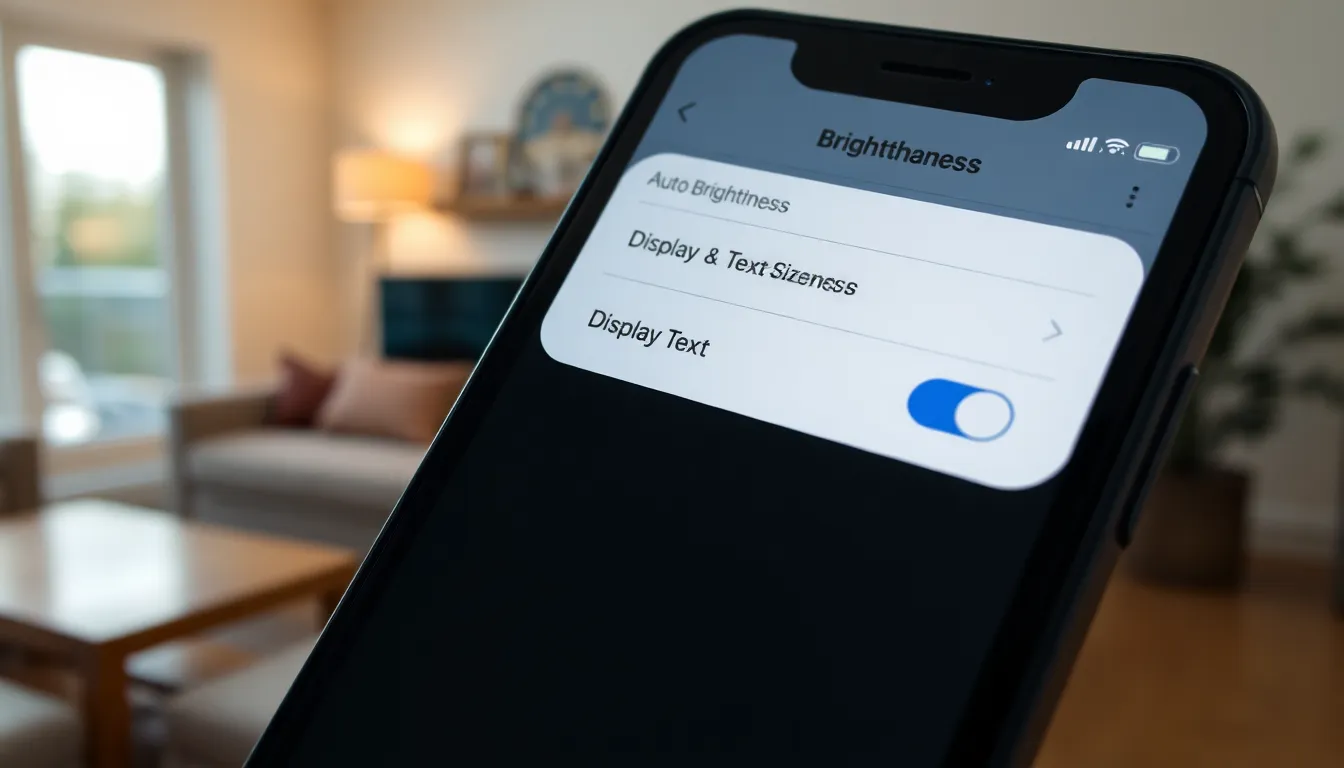
Start by opening the “Settings” app on the home screen. Scroll down and select “Accessibility” in the menu. Under the “Vision” section, tap on “Display & Text Size.” Here, users can see various options related to screen adjustments, including Auto Brightness.
Enabling Auto Brightness
Locate the toggle switch for Auto Brightness within the Display options. If the switch is off, users can turn it on with a simple tap. Auto Brightness will now automatically adjust based on environmental light conditions, enhancing visual comfort and reducing eye strain.
Troubleshooting Auto Brightness Issues
Auto Brightness may sometimes fail to function correctly, impacting user experience. Users might notice that their screen brightness remains too low or too bright in varying light conditions.
Common Problems
Inconsistent brightness levels often frustrate users. Some iPhones may not respond to changes in ambient light, rendering the feature ineffective. Additionally, users might find the Auto Brightness option inadvertently disabled after software updates. Environmental factors like screen protectors could interfere with light sensors, further compounding the issue. Poor sensor performance may lead to this feature not operating as intended.
Solutions and Tips
First, enable Auto Brightness in the Settings app under Accessibility. Sometimes restarting the iPhone resolves minor glitches, restoring functionality. Checking for iOS updates might correct bugs affecting brightness adjustment. Regularly cleaning the screen can help ensure that sensors detect light effectively. If problems persist, users might consider resetting all settings as a last resort. Adjusting individual brightness settings manually can also serve as a temporary solution while troubleshooting.
Benefits of Using Auto Brightness
Auto Brightness offers several advantages that enhance the iPhone user experience. Reducing eye strain is one significant benefit. In low light conditions, the screen brightness adjusts automatically, preventing discomfort from overly bright displays. Ensuring optimal visibility in different environments is another key feature. When outdoors, it increases brightness, making it easier to read text and view images.
Saving battery life stands out as an additional advantage. By automatically lowering brightness when less light is needed, users conserve energy. The display’s adaptability helps maintain satisfactory performance without draining the battery.
Improving user convenience contributes to a seamless experience. Users can focus on content without frequently fiddling with brightness settings. Enabling Auto Brightness simplifies adjustments, allowing users to enjoy content without interruptions.
Maintaining accuracy in color representation is vital for visual clarity. Auto Brightness works alongside True Tone in supporting accurate color temperatures. This collaboration enhances overall screen performance, yielding a more vivid visual experience.
Preventing distractions significantly enhances usability. Automatic adjustments mitigate abrupt changes in brightness that might detract from attention. Thus, users can stay engaged with their tasks or entertainment.
Overall, these benefits support a smoother, more enjoyable interaction with the iPhone. Users gain both comfort and practicality by leveraging the Auto Brightness feature, enhancing their daily smartphone experience.
Auto Brightness on the iPhone is a valuable feature that enhances user experience by adjusting screen brightness according to surrounding light conditions. By enabling this option, users can enjoy a more comfortable viewing experience while reducing eye strain and conserving battery life.
Navigating to the Auto Brightness setting is straightforward and can significantly improve daily device interactions. For those who prefer manual control or encounter issues, there are simple troubleshooting steps to follow. Ultimately, understanding and utilizing this feature allows users to tailor their iPhone to fit their unique needs and environments.